
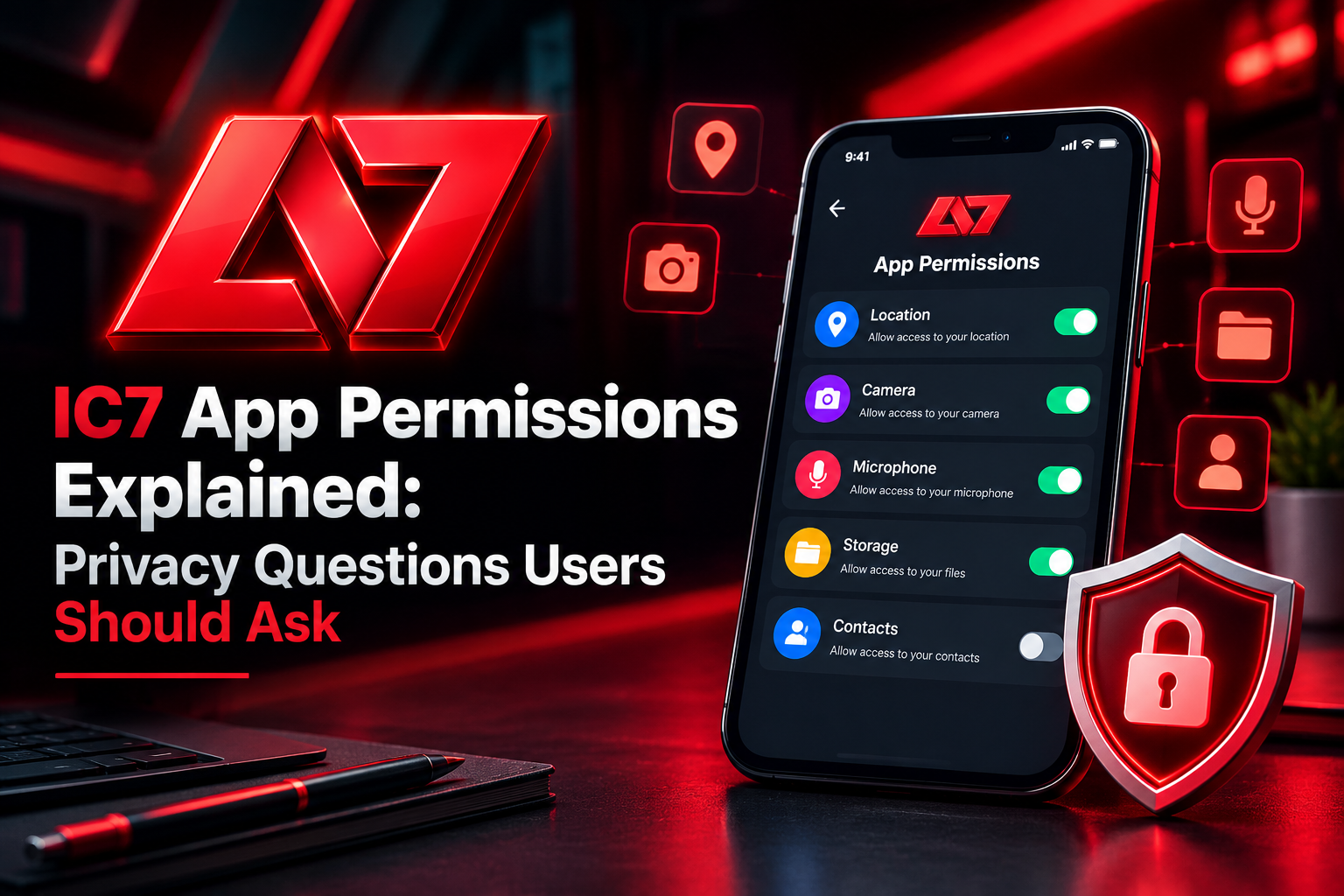
Did a new app just ask to see your contacts? Maybe it wants your location or your texts. That feels odd. Before you tap Allow, take a short pause. This is a smart move for any IC7 app. Some permissions are needed. Some are not. Too much access can hurt your privacy. This guide shows how to tell the two apart. It covers key access rights, smart questions, and clear steps. It also compares safe and risky files. The sentences are short, and the words are simple. The steps get the most detail so that you won’t get lost. Read on and take control of your IC7 app settings. Let’s start.
Which Core System Access Rights Define Standard IC7 App Device Permissions?
Some rights help the app run. Others only collect data. Use this table to judge each one.
| Permission | Why It Is Needed | When It Is Too Much |
| Device storage | Saves cache files and app assets | Fine if limited to the app’s own folder |
| Network and data | Loads the dashboard and syncs with the server | Always needed for online use |
| SMS reading | Fills in your one-time code | Risky if it keeps reading in the background |
| Precise GPS | Checks your region once | Too much if it tracks you all day |
| Contacts and media | Powers sharing features | Not needed for basic use |
Look at the SMS and location rows with extra care. These two are the most often misused. Review every right before you finish an IC7 app setup. A good setup asks for little. If an app wants more than this table shows, pause and ask why.
What Crucial Privacy Questions Must Users Ask Before Installing the IC7 App?
A few good questions can protect your data. Ask them before you allow anything.
- Does it need full storage? Basic cache needs only its own folder. It does not need your photo gallery or private files.
- Why does it want SMS access? A short read can fill in your OTP. Switch it off once your account is made.
- Does it need location all the time? A region check needs your location once, not every minute.
- What data does it keep? Read the privacy page. See if it stores your ID numbers or phone details.
- Does it work with fewer rights? Test the IC7 app with extra permissions turned off. If the main features still work, keep them off.
If you can’t find clear answers, treat that as a warning sign.
How Can Users Manage and Revoke IC7 App Permissions Step by Step?
Did you allow too much at setup? You can fix it. Follow these six steps in order. Go slow and don’t skip any.
Open Settings and find the app
Unlock your phone and tap the gear icon. Tap Apps, then See All Apps. Scroll through the list, or use the search bar. Tap the app name. The App Info page will open. Do not tap Uninstall or Clear Data by mistake.
Open the Permissions tab
Tap Permissions. You will see two lists, Allowed and Not Allowed. Read each item in the Allowed list. Ask one simple question. Does a game need this right? Make a note of anything that looks odd. This is the key review for the IC7 app.
Remove extra access
Tap each risky item, like Location, Contacts, or Camera. Choose Don’t Allow. For Location, you can pick Allow Only While Using the App if the app asks for your region. Change one at a time. This helps you see which one affects the app.
Limit background data
Go back to App Info. Tap Mobile Data and Wi-Fi. Switch off Background Data. This stops the app from syncing when it is closed. It also saves battery. If alerts stop coming, you can switch it back on.
Fix special access
Open the main Settings page. Find Special App Access. Tap Install Unknown Apps. Find your browser and switch the permission off. You only needed it for the install. Leaving it on is a risk.
Relaunch and test
Open the app. Check the home screen, the menus, and the sign-in page. If a screen fails, turn on only the one right it needs. Then test again. If everything works, you are done.
Repeat these steps after each update. Updates can switch old rights back on. Make this a habit for every IC7 app update.
How Do Verified Privacy Safeguards Compare to Unverified Software Builds?
A changed file can hide spyware or adware. Use this table to spot the gap.
| Check | Verified Build | Unverified File |
| Permission scope | Only what the app needs | Asks for admin and SMS rights |
| Data link | Encrypted HTTPS connection | Simple HTTP that others can read |
| Play Protect | Installs with no warning | Shows a warning at once |
| Background tasks | Stops when idle | Keeps running in the background |
No file can be called fully safe. Always check the source before you install. Read the web address letter by letter. Fake sites often change one small letter.
Users in India should also know the law. Real-money online gaming is restricted under the Promotion and Regulation of Online Gaming Act, 2025. Check that any platform follows the rules before you share private data.
What Proactive Habits Protect Your Smartphone Data Long Term?
Small habits protect your phone for the long run.
- Review permissions monthly: Look at what each app can access. Remove what you don’t need.
- Update your phone: System updates fix known security gaps.
- Skip modded files: Files that promise free extras often hide trackers.
- Clear the cache now and then: This removes old temporary files and frees memory.
- Keep Play Protect on: It scans new files for you.
Set a monthly reminder. A five-minute check can save you a lot of trouble later.
Conclusion
You don’t need to be a tech expert to guard your privacy. Ask smart questions before you tap Allow. Remove rights the app does not need. Switch off Install Unknown Apps when you finish. Keep Play Protect on and your phone updated. These habits help you stay in control of your IC7 app settings. Review them often. Never share your OTP or passwords. Take your time with each step.
For safe guides about Ic7GameAPKIN, use sources you can trust. For authentic app updates, verified installer links, and safe usage guides, visit Game APK India.
Frequently Asked Questions (FAQs)
Q1: Is storage access safe for the IC7 app?
Basic storage access is fine when it stays in the app’s own folder. Avoid full media access unless the app truly needs it.
Q2: Why does the IC7 app ask for SMS permission?
It may read your OTP to fill it in for you. Turn it off after you verify your account.
Q3: Can I use the IC7 app with location turned off?
Often yes. Many main features work without GPS. If something breaks, allow location only while using the app.
Q4: What if the app won’t launch after I remove rights?
Turn the basic ones back on, like network and storage. Keep contacts and camera access off.
Q5: How do I know if an IC7 app file was changed?
Odd requests, like call logs, are a warning sign. A Play Protect alert is another. If you see either one, delete the file.